Operators & Positions
Manage your team and how they map to the phone system.
Your operators are the people on the phones — and in Astervis, every dashboard, leaderboard, QA score and coaching card is attached to one of them. This page is where you keep that roster accurate: who's on the team, what they do, what they can see, and how their logins line up with the extensions on your PBX. Get this right once and the rest of the product — analytics, QA, work schedules — just works.
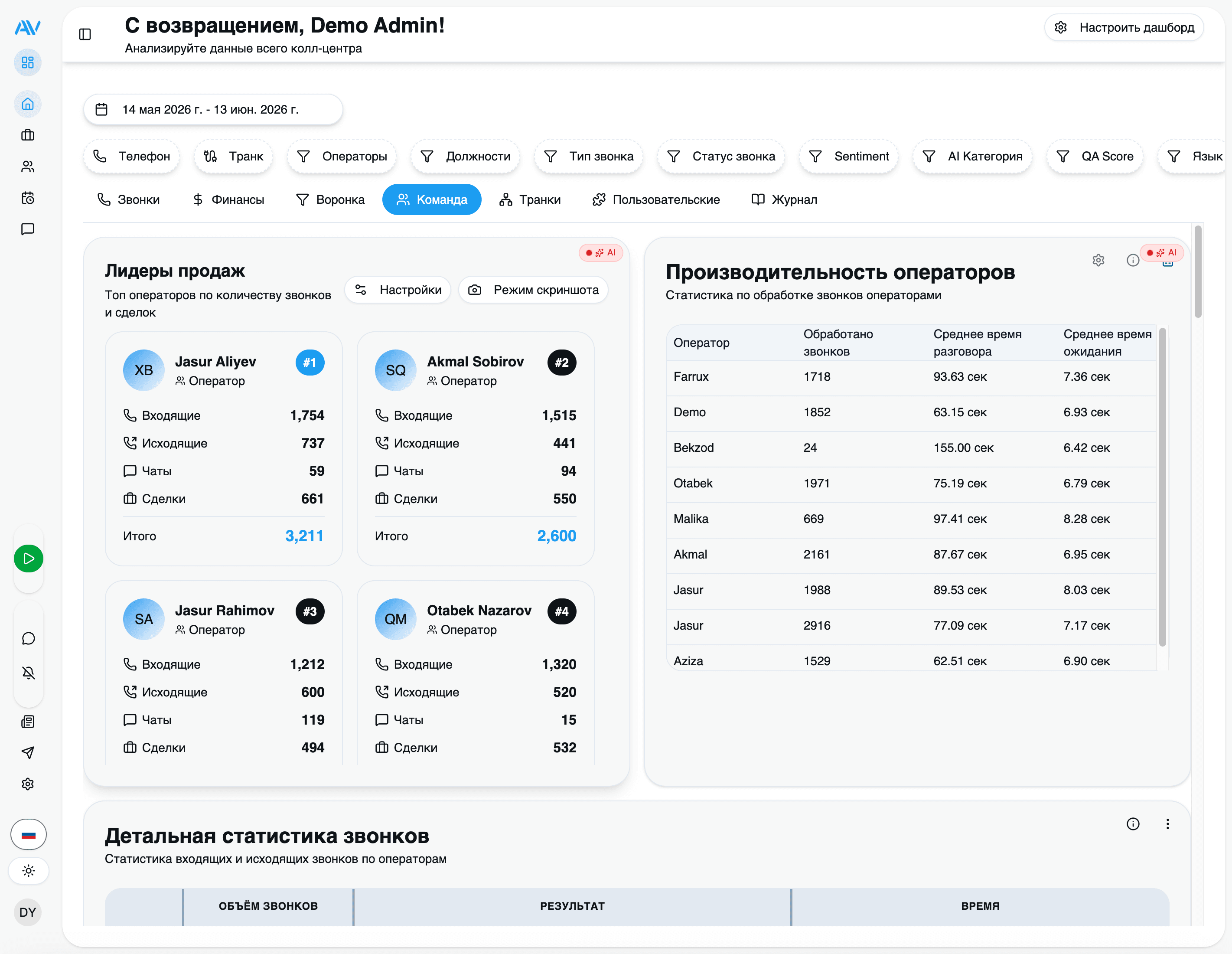
Everything here lives under Employees in the admin panel (/employees), with
positions on their own canvas (/positions/canvas).
Astervis is role-aware end to end. Admins, supervisors and operators each get their own parallel views, so the role you assign an employee decides which dashboards and actions they land on after signing in.
The employees list
The employees list is the single roster for your call center. Each row shows the operator's name and login, their position, their assigned work schedule, and whether the account is active.
Create
Add a new operator with a login, name, role, and optional position, schedule and phone.
Edit
Update any field later — change a role, reassign a position, swap a schedule.
Deactivate
Turn off access without deleting, so historical analytics stay intact.
Adding an operator
Open the employees list
Go to Employees and click Add Employee.
Fill in the operator's details
Login, first and last name, and an initial password are required. Role decides what they can do; position, schedule and phone are optional but worth setting — they drive reporting and time tracking.
Save
The operator can sign in immediately with the login and initial password.
| Field | Required | What it does |
|---|---|---|
| Login | Yes | Unique username the operator signs in with. |
| First / Last name | Yes | Shown across dashboards, leaderboards and QA reports. |
| Password | Yes | Initial password — the operator can change it later. |
| Role | Yes | Admin, Supervisor or Operator — sets what they can see and do. |
| Position | No | Job title / place in the org hierarchy; powers grouped reporting. |
| Schedule | No | A work schedule template — enables time tracking and late-arrival detection. |
| Phone | No | Contact number / extension for reference. |
Passwords can't be read back after creation. If an operator is locked out, reset their password rather than trying to recover the old one.
Deactivate, don't delete
When someone leaves, deactivate their account instead of removing it. Edit the operator, switch Active off, and save. They can no longer sign in, but every call, QA score and report tied to them stays in place — so last quarter's leaderboard still adds up. Deleting an operator would orphan that history.
Importing operators from your PBX
You don't have to type your team in by hand. Astervis can read the extensions configured on your PBX — Sangoma PBX, FreePBX, Issabel, VitalPBX, Elastix or generic Asterisk — and turn them into operator records for you.
Start the import
In the employees list, click Import Extensions.
Review what was detected
Astervis lists the extensions it found on the PBX. Each one is a candidate operator.
Pick which to import
Select the extensions that belong to real agents — skip ring groups, IVRs and test endpoints.
Import
A matching employee record is created for each selected extension. From there you fill in roles, positions and schedules as usual.
Importing creates the people; it doesn't change your PBX. Matching extensions to operators is what lets Astervis attribute calls to the right agent in analytics and QA — so an operator's extension is the bridge between the phone system and every number you see in a report.
Positions and the hierarchy canvas
A position is a job title with a place in your org chart — "Sales Manager", "Senior Support Agent", "Team Lead". Positions are how you group operators for reporting: instead of reading a flat list of names, supervisors can see how a team or department is performing as a unit.
Positions form a tree. Each one can have a parent, which lets you model a real reporting line:
Working on the canvas
The positions canvas (/positions/canvas) is a visual editor for that tree. Rather
than filling in a "parent" dropdown for each position, you drag boxes around and connect
them, and the hierarchy updates as you go. It's the fastest way to lay out a new org
chart or rearrange one after a reorg.
Add positions
Create the titles you need — each starts as a node on the canvas.
Arrange the hierarchy
Drag positions under their parents to draw the reporting lines.
Assign operators
Open an operator and pick their position from the dropdown. They now roll up into that branch everywhere it matters — leaderboards, team views, QA averages.
Positions are about org structure and reporting; roles are about access. A "Sales Manager" position groups people in reports, but it's the operator's role that decides whether they can change settings. Keep the two in your head as separate dials.
Roles and permissions
Every operator has a role, and the role sets the ceiling on what they can do.
Sees their own personal dashboard — their calls, their numbers, their QA score and coaching card. No team-wide visibility and no settings access. This is the default for front-line agents.
Behind those three roles is granular RBAC. Astervis ships with role-based access
control where individual capabilities are gated by named permissions — for example,
blacklist.manage controls the phone blacklist,
qa.* covers QA configuration, and agent_programs.manage covers autonomous agents.
Admins manage which roles hold which permissions, so you can grant a supervisor exactly
one extra capability without making them an admin.
RBAC roles and permissions are seeded during setup. If a freshly installed system shows nobody with the right access, the RBAC seed needs to run — see the installation guide.
Filtering and bulk actions
On a team of any real size you'll want to slice the roster. The employees list filters by status (active / inactive), by position (everyone in a department or team), and by schedule (everyone on a given shift template).
Once you've filtered down to a set of people, selecting them lets you act on the whole group at once instead of one operator at a time:
Assign a position
Move a whole team under a new manager in one step.
Assign a schedule
Put a shift's worth of operators on the same work schedule.
Activate / deactivate
Onboard or offboard several accounts together.
Export
Pull the filtered list out for HR or an audit.
QA and coaching, per operator
Roles and positions don't just organize the roster — they're what makes per-operator quality scoring possible. Because every analyzed call is attributed to the operator who handled it, Astervis can score each person individually and turn that into something a supervisor can act on.
Two things land on each operator automatically once AI Call Analytics is enabled:
- A QA score. Every recorded call that operator handles is scored 0–100 against
your configurable rubric, with the reasoning and supporting quotes attached. The
QA Analytics dashboard (
/qa-analytics) rolls these up: an average per operator, per-criterion averages that show exactly where each person is weak, and a drill-down with that operator's calls and a score-over-time trend. - A coaching card. The Operator Coach insight builds a daily card for each operator: today's average QA versus their rolling 30-day baseline, a "win to replicate" (their best call), a "coaching opportunity" (their weakest or failed call), and the single QA criterion they most need to work on. It's deterministic and personal — one card per operator, per day — so a supervisor's 1:1 starts with evidence instead of guesswork.
Anomalies surface on their own. When an operator's average dips below threshold (warning under 60, critical under 40), or their scores trend down, Astervis flags it — so you notice a struggling agent before they show up in the monthly numbers.
QA scoring & rubrics
Design the quality checklist every operator is scored against, and read the per-operator analytics.
AI Call Analytics
How calls get transcribed, scored and attributed in the first place.
Quick reference
Last updated on