License
Get and manage your Astervis license key
Your license key activates Astervis on your server and links it to your subscription.
Getting Your License Key
After subscribing, your license key is available immediately.
Log into Your Account
Go to astervis.io/account and sign in.
Find Your License
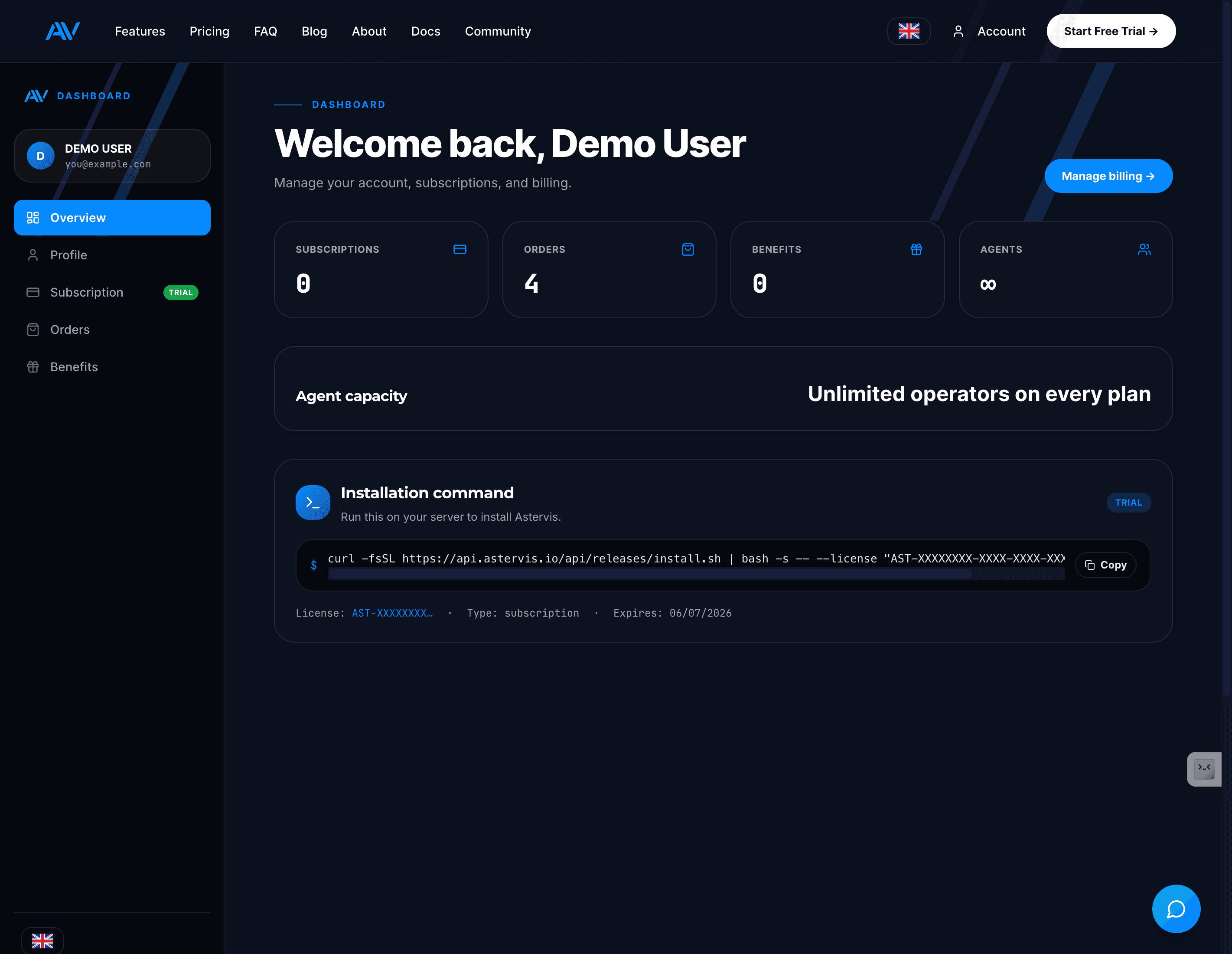
On the Overview tab, look for the Installation Command section.
Your license key is shown partially masked:
Copy Installation Command
Click the Copy button to copy the full installation command with your license key.
License States
| State | Meaning |
|---|---|
| Processing | License is being generated (usually seconds) |
| Active | License is ready to use |
| Trial | Active trial period |
| Expired | Subscription ended |
Processing State
If you see "License Processing" after purchase:
- Wait a few seconds
- Click Refresh on the page
- License should appear
License generation usually takes just a few seconds after payment.
License Binding
Your license is bound to one server at a time.
How It Works
- When you run the installer, it creates a unique server fingerprint
- This fingerprint is linked to your license
- The license can only be used on that server
Why Binding?
- Prevents unauthorized sharing
- Ensures one subscription = one installation
- Protects your investment
Moving to a New Server
Need to migrate Astervis to a different server?
Request Reset
Contact support to reset your server binding:
- Email: support@astervis.io
- Subject: License Server Reset
- Include: Your license key prefix (AST-XXXX-...)
Wait for Confirmation
Support will reset the binding within 24 hours.
Install on New Server
Run the installation command on your new server.
The license will now bind to the new server.
The old server will no longer be able to use the license after reset.
License Limits
Operator Limit
Your license includes a specific number of operators based on your plan:
| Plan | Included Operators |
|---|---|
| Starter | 10 |
| Professional | 50 |
| Business | 200 |
| Enterprise | Unlimited |
If you purchase extra operators, your limit increases automatically.
Checking Your Limit
View your current usage and limit:
- Go to Account → Overview
- Find Agent Usage section
- See current / maximum operators
Exceeding Limit
If your Astervis installation detects more operators than your license allows:
- Dashboard shows a warning
- New operators may be blocked
- Purchase extra operators or upgrade plan
License Expiration
Subscription Ended
If your subscription expires:
- License becomes invalid
- Astervis stops syncing new data
- Dashboard becomes read-only
- Existing data remains accessible
Grace Period
After expiration, there's a 7-day grace period:
- Astervis continues working
- You receive reminder emails
- Renew to continue without interruption
After Grace Period
- Data sync stops completely
- Dashboard shows license expired message
- Data retained for 30 days
Offline Mode
Astervis can work temporarily without internet connection.
How It Works
- License is validated periodically (every 24 hours)
- If internet is unavailable, offline grace period starts
- 7 days of offline operation allowed
Requirements
- License must be valid before going offline
- Server fingerprint must match
- Re-validates when internet returns
Troubleshooting
License Invalid
Problem: Installer says license is invalid
Solutions:
- Check for typos in license key
- Verify subscription is active
- Ensure license isn't bound to another server
License Expired
Problem: Dashboard shows license expired
Solutions:
- Check subscription status in account
- Update payment method if payment failed
- Renew subscription
Server Mismatch
Problem: License bound to different server
Solutions:
- Contact support for server reset
- Wait for reset confirmation
- Reinstall on correct server
Security
Protect Your License
- Don't share your license key publicly
- Don't include in public repositories
- Store securely like a password
If Compromised
If you believe your license key was exposed:
- Contact support immediately
- We'll invalidate the old license
- Issue a new license key
Questions?
- Email: support@astervis.io
- Subject: License Question - [Your License Prefix]