Open Lines (Omnichannel Chat)
A unified inbox for Telegram and WhatsApp conversations.
Your customers message you on Telegram and WhatsApp; your operators shouldn't have to juggle two phones to keep up. Open Lines pulls both channels into one inbox, routes each new conversation to an available operator, and gives your team a single place to read, reply, and hand off chats — right next to the call analytics they already use.
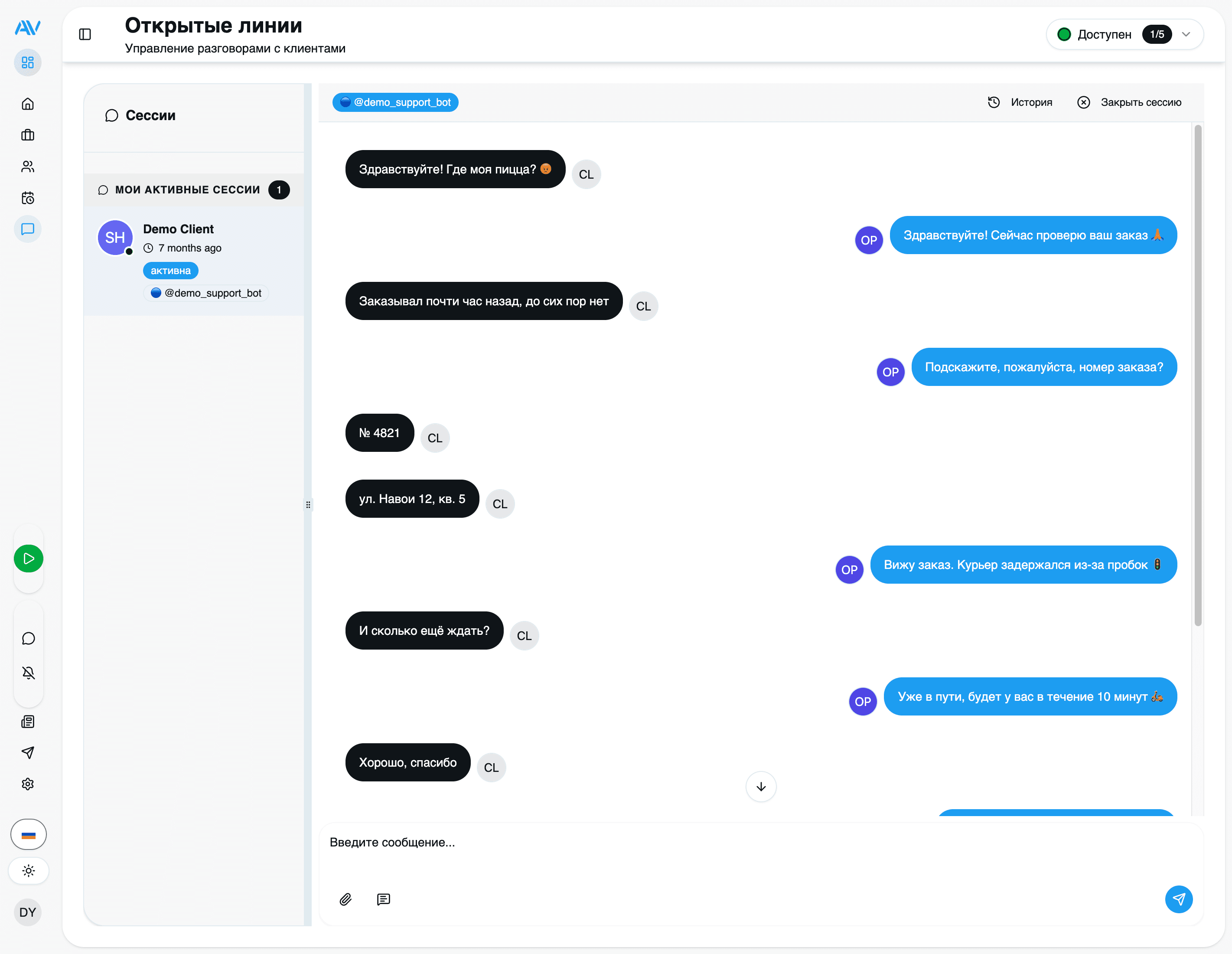
This page is for a support lead setting up chat for the first time. It walks through the building blocks (channels, queues, sessions, operators), how to wire up a queue, and the features your team will use day to day.
Open Lines runs entirely on your own server, like the rest of Astervis. The only data that leaves the box is what a channel provider needs to deliver a message — Telegram's Bot API, or the WhatsApp Cloud API. Chat history, attachments, and operator activity all stay on-premise.
The unified inbox
Open Lines is one shared inbox for every incoming chat, no matter which app the customer used. An operator sees a list of conversations on the left, the active chat in the middle, and the customer's context on the right — and never has to switch tools to answer a Telegram message versus a WhatsApp one.
Two channel providers are supported today:
Telegram
A bot you create with @BotFather, connected by token. Supports text, photos, documents, and voice messages.
WhatsApp (Cloud API)
Meta's official WhatsApp Cloud API, with message templates, signature verification, and provider rate limits handled for you.
Telegram and WhatsApp (Cloud API) are the only channels. Astervis does not integrate Instagram. If you've seen an older guide listing Instagram, it was inaccurate — ignore it.
How it fits together
Four concepts do all the work. Get these straight and the rest of the setup is quick.
Channel
A connection to a messaging platform — your Telegram bot, or your WhatsApp Cloud API number. Messages arrive here.
Queue
A group of operators that handles a channel's conversations — e.g. Sales, Support, VIP. Routing happens at the queue.
Session
One conversation with one customer. It moves from waiting → active → closed and carries the full message history.
Operator
A team member who answers sessions. Operators belong to queues and set their own availability status.
The flow is straightforward: a channel receives a message → it opens (or resumes) a session → the session lands in a queue → the queue assigns it to an available operator.
Connect a channel
Before you can route anything, connect at least one channel. The steps differ slightly per provider, so each is on its own tab.
Create a bot with BotFather
In Telegram, open @BotFather, send /newbot,
and follow the prompts. BotFather returns a bot token that looks like
123456789:AAExxxxxxxxxxxxxxxxxxxxxxxxxxxxxxxxxx.
Add the channel in Astervis
Go to Settings → Open Lines → Channels, click Add channel, choose Telegram, and paste the bot token. Astervis registers the webhook with Telegram automatically — there's nothing to expose by hand.
Assign it to a queue
Pick which queue this channel feeds. New conversations from the bot will be routed to that queue's operators.
Set up a queue
A queue decides who answers and how many chats each person handles at once. Most teams start with one Support queue and add more (Sales, VIP) as they grow.
Create the queue
Go to Settings → Open Lines → Queues and click Add queue. Give it a name (e.g. "Support Team"), an optional description, a max sessions per operator limit, and decide whether auto-assign is on.
Add operators
Open the queue's Operators tab and add people individually or by position. Adding a position pulls in every employee in that role, so a new hire in "Support Agent" joins the queue automatically.
Set priority
Give each operator a priority — lower number means assigned first. Use this to send chats to your strongest agents before overflow reaches the rest.
A sensible max sessions per operator is 5–7. Higher numbers mean faster pickup but slower replies as agents thin out across more chats. Tune it against your first-response-time target.
How auto-assign chooses
With auto-assign on, a new session goes to the available operator with the lowest current load, breaking ties by priority. Busy, away, and offline operators are skipped. With auto-assign off, sessions wait in the queue until a supervisor assigns them by hand — useful for small teams or sensitive accounts.
Operator status
Every operator controls their own availability, and only Available operators receive new assignments. This is the lever that keeps work off someone who's at lunch or heads-down on a hard case.
| Status | Receives new sessions? | Use it when… |
|---|---|---|
| Available | Yes | Ready and watching the inbox |
| Busy | No | Finishing current chats, no new ones |
| Away | No | Short break, back soon |
| Offline | No | Shift ended / not working |
If every operator in a queue is non-Available and auto-assign is on, new sessions sit in waiting until someone goes Available or a supervisor assigns manually. Watch the waiting count during busy hours.
Work a conversation
The chat console is where operators spend their time. It shows the list of their active sessions with unread counts, the open conversation, and the customer's details and history alongside.
Messages aren't limited to plain text — the console handles everything the channels carry:
| Type | What operators can do |
|---|---|
| Text | Send and receive messages |
| Photos | View and send images |
| Documents | Receive and send file attachments |
| Voice | Play customer voice messages |
| Reply | Reply to a specific earlier message for context |
Attachments are stored on your server under the app's uploads/ directory, so
files shared in chat never live with a third party.
Quick replies
Quick replies are saved snippets your team inserts with a shortcut instead of retyping the same answer. Create them once, and every operator gets them.
Open quick replies
Go to Settings → Open Lines → Quick Replies.
Add a reply
Give it a title (so it's searchable), the content to send, a
shortcut like /welcome, and a category (greeting, FAQ, shipping…).
Use it in chat
In an active session, type the shortcut and the saved text drops in, ready to edit or send.
Quick replies can carry translations, so the same shortcut sends the right wording in Russian, English, or Uzbek depending on the conversation.
Manage sessions
A session moves through three states, and operators (and supervisors) control the transitions.
waiting ──assign──▶ active ──close──▶ closed
                      │
                  transfer
                      ▼
another operator / queueSupervisor monitoring
Supervisors get a live view of every queue and session at Open Lines → Monitor — who's chatting with whom, how long sessions have been waiting, and where the backlog is building — so they can step in or rebalance before a customer is left hanging.
Bots and welcome messages
A small bot can answer before a human picks up: greet the customer instantly, confirm they've reached the right place, and gather a first detail while an operator becomes free. This keeps your first-response time low even when the queue is busy.
Open bot settings
Go to Settings → Open Lines → Bots and select the channel.
Enable a welcome message
Turn on Welcome message and write the greeting. You can provide it per language (ru / en / uz) so the customer is met in their own language.
Set the hand-off delay
Choose how long the bot holds the conversation before transferring to a human operator. A short delay (a few seconds) is enough to confirm receipt without feeling like a wall.
You can also define keyword-based auto-responses — trigger phrases mapped to canned answers — for the most common first questions ("hours", "address", "price"). Keep these focused; the goal is to deflect the obvious and route everything else to a person.
Session analytics
Once chats are flowing, the analytics view tells you whether your team is keeping up. You'll find it under Reports → Open Lines.
| Metric | What it tells you |
|---|---|
| First response time | How long a customer waits for the first reply |
| Resolution time | Total length of a session, open to close |
| Sessions per operator | Workload spread across the team |
| Customer rating | Satisfaction score when the customer leaves one |
Break those down by channel (Telegram vs WhatsApp), by operator, and by hour of day to spot your peak windows and staff against them. If first response time is creeping up, it's usually a sign to raise max sessions, add operators to the queue, or lean harder on quick replies and the welcome bot.
Where to go next
Last updated on